
Quick Steps
For Add-Ons:
For Worlds:
For Skin Packs:
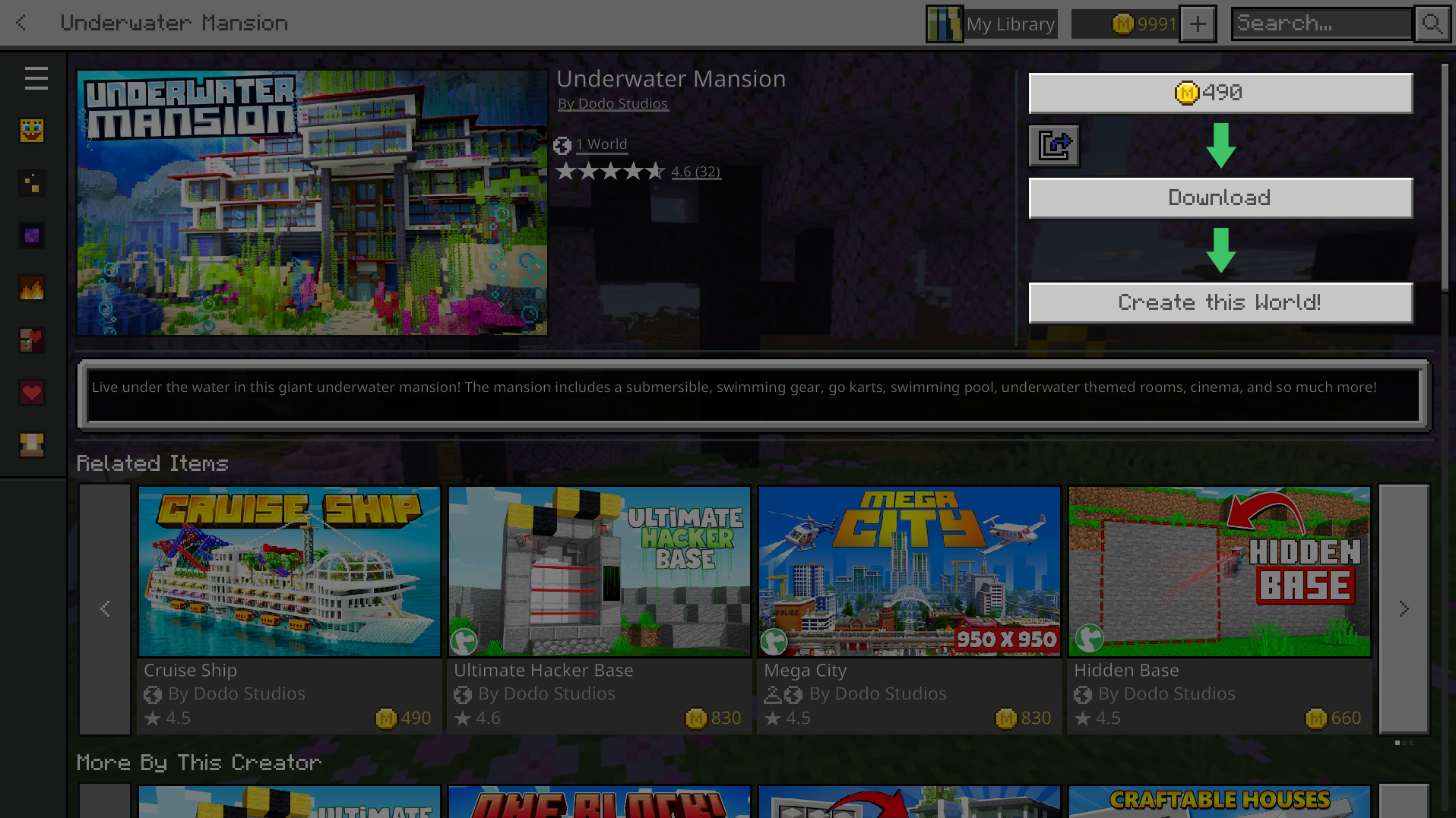
After purchasing a product on the Minecraft Marketplace, the purchase button turns into a download button. Once the download is complete, you can click “Activate Add-On!” or “Create this World!”. This automatically walks you through the steps of creating the world or adding the Add-On to an existing or new world. For Skin Packs this button allows you to equip a skin, and you can also scroll down to the skins to equip one you like.
You can learn how to install an Add-On to an existing world here.
What should I do if my Marketplace content is stuck downloading?
Quick Steps
If a Minecraft Marketplace product is stuck downloading or a download has failed, clearing the download cache usually fixes it. This forces the download to restart cleanly. Don’t worry, you won’t have to purchase the product again.
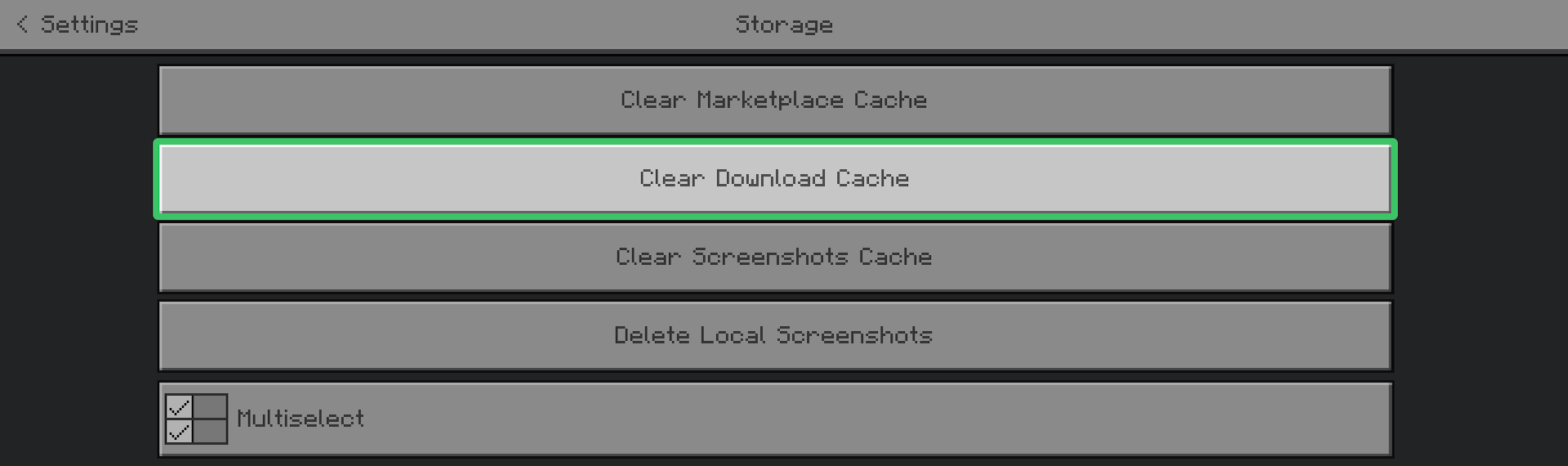
If your Marketplace page itself looks broken or isn’t loading correctly, clearing the Marketplace cache can help as well. You won’t lose anything you own.