
Quick Steps
Delete your current world (optional):
Re-download the world:
After downloading a world from the Minecraft Marketplace, you can always download it again. Whether you want to start over fresh or just reset the world entirely, here’s how to delete your current world (optional) and re-download it.
Delete your current world
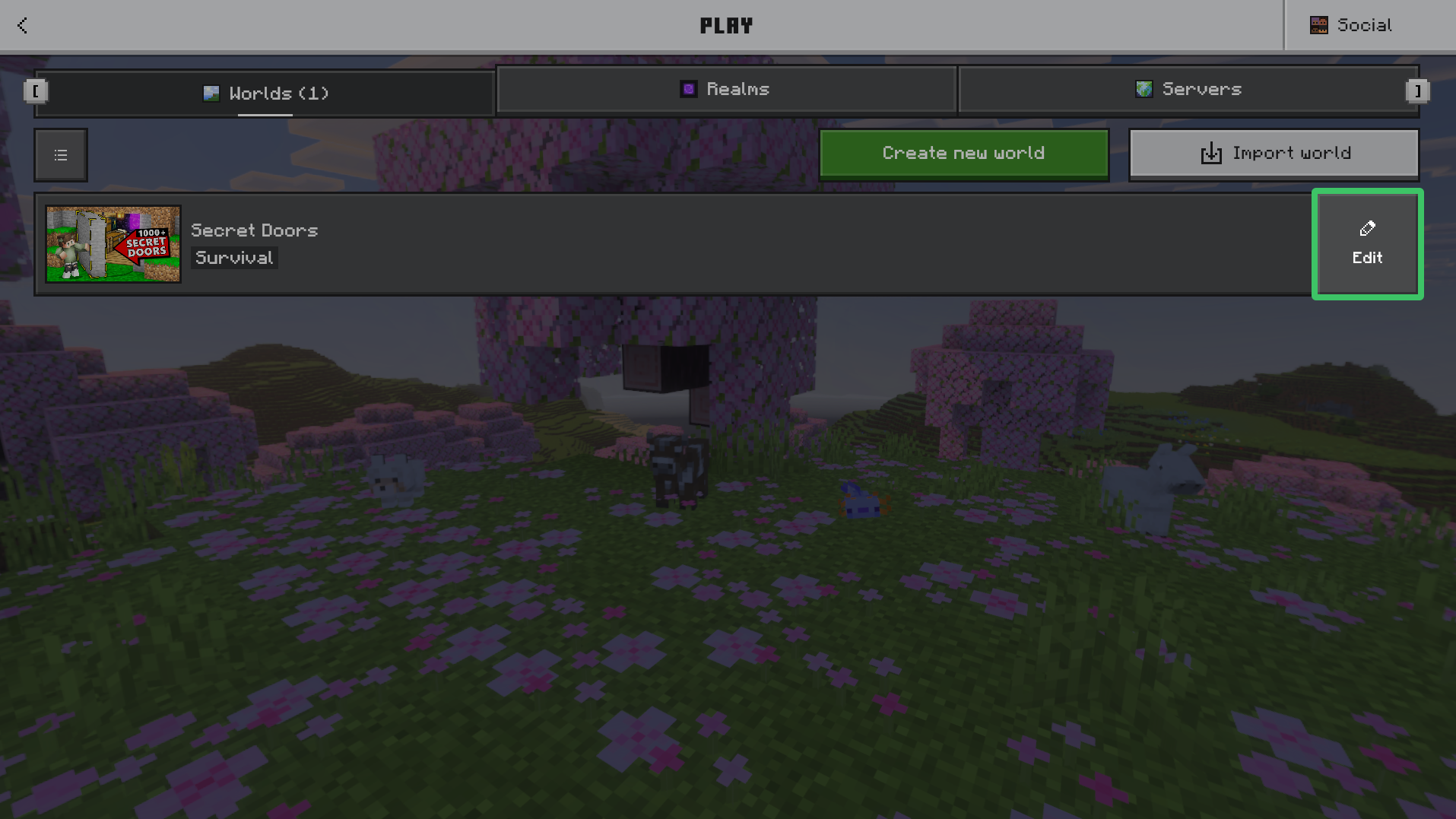
Deleting your current world is optional, only do this if you no longer need the existing save. To open the “Edit World” screen, click the Edit button next to the world in your Worlds tab.
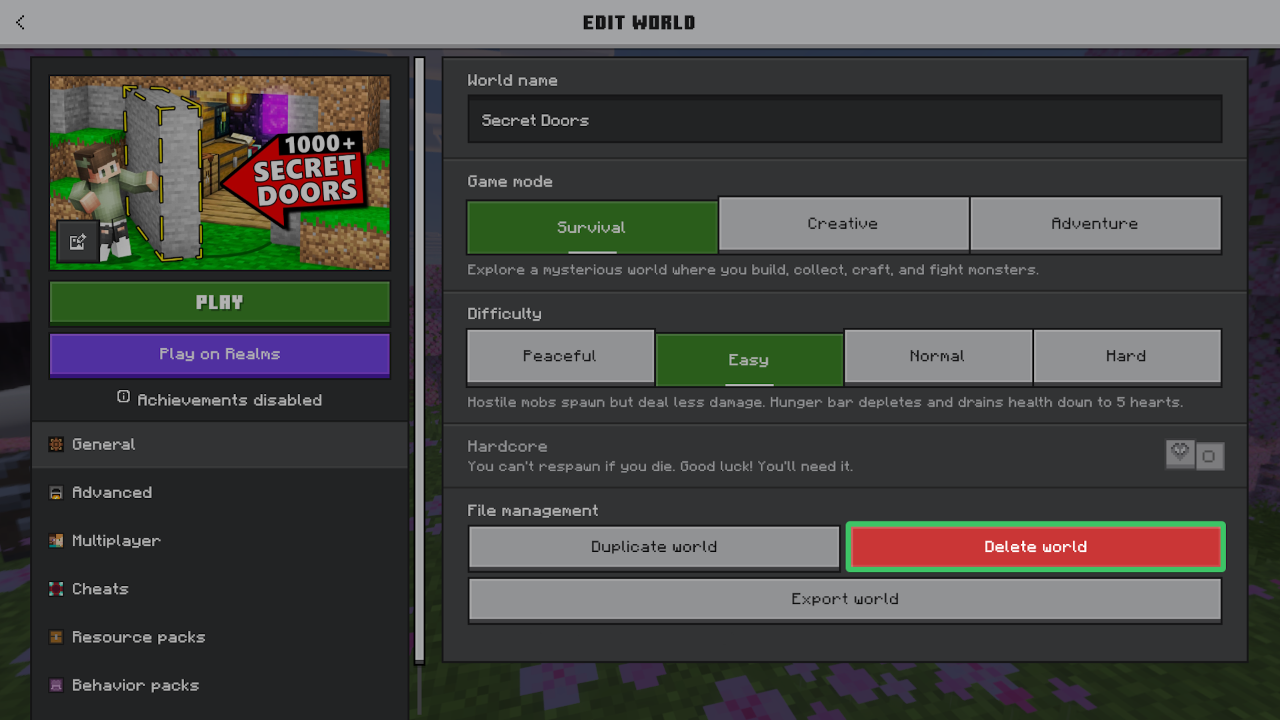
If you scroll down, you’ll see “Delete world”. Be careful! Deleting a world is permanent. You can’t get the world back after it’s been deleted.
Load from template
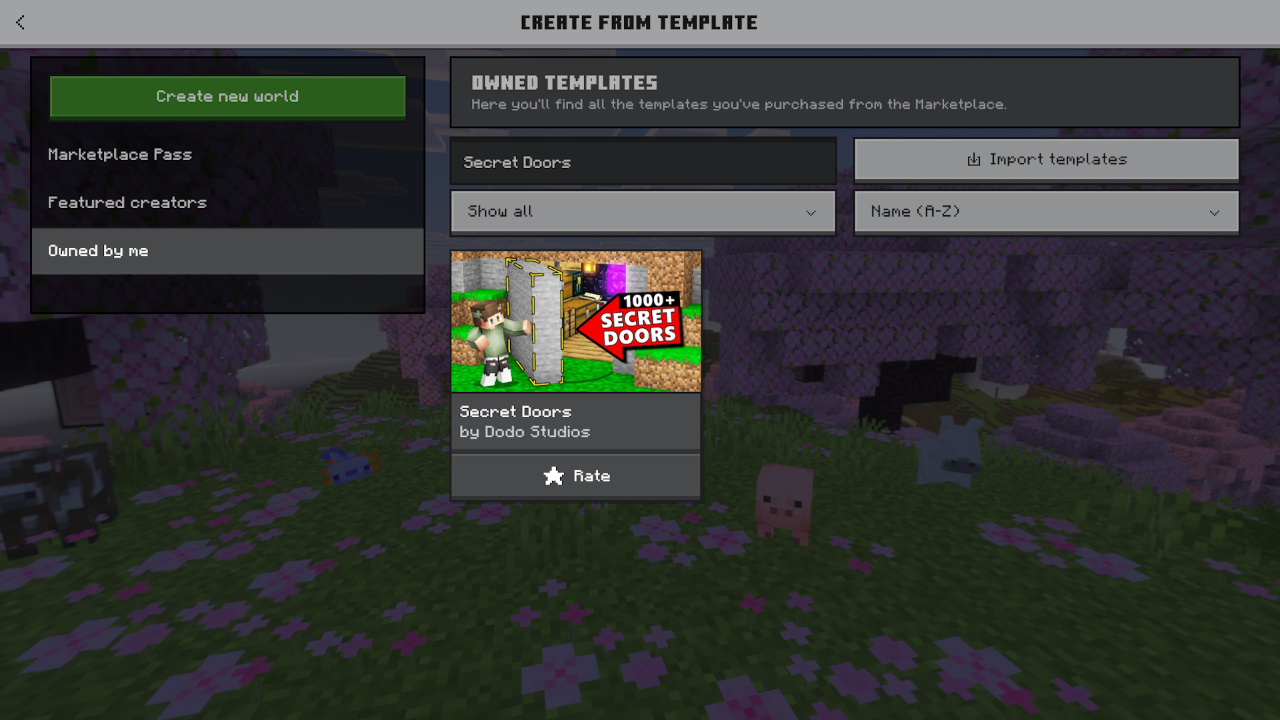
The simplest way to download a Minecraft Marketplace world again is through the world creation menu. On the Worlds tab, click “Create new world”. Inside this menu you’ll find “Owned by me”, which includes all the worlds you’ve purchased on the Minecraft Marketplace. Find the world you want to re-download and simply click on it to create a new world.
In short, resetting a Minecraft Marketplace world is as simple as optionally deleting the old save and re-downloading it from the “Owned by me” section in your world creation menu.