
Key Takeaways
| Feature | Duplicate World | Export World |
|---|---|---|
| How It Works | Creates an exact copy within Minecraft | Generates a downloadable .mcworld file |
| Where It’s Saved | Directly in your Worlds tab | Anywhere on your PC |
| Available On | All Minecraft: Bedrock Edition platforms | Minecraft Bedrock: Windows Edition |
| Best For | Quick saves before risky build changes or Hardcore mode | Long-term backups and transferring worlds between devices |
| Extra Tip | Rename the duplicate to avoid confusion | Store in cloud storage for extra safety |
Making back-ups of your Minecraft world on Minecraft: Bedrock Edition is much simpler than it might seem. There are two main ways to do it.
Duplicate World
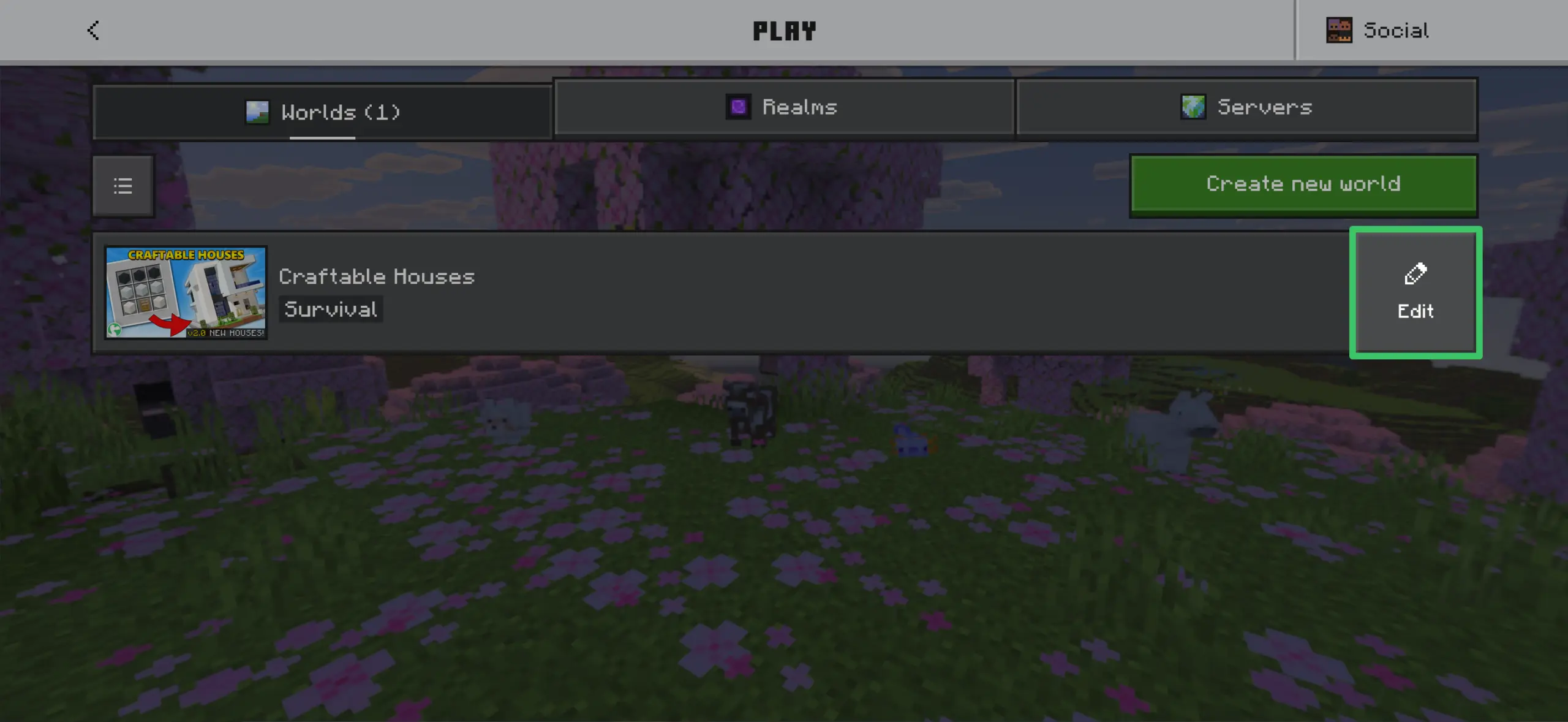
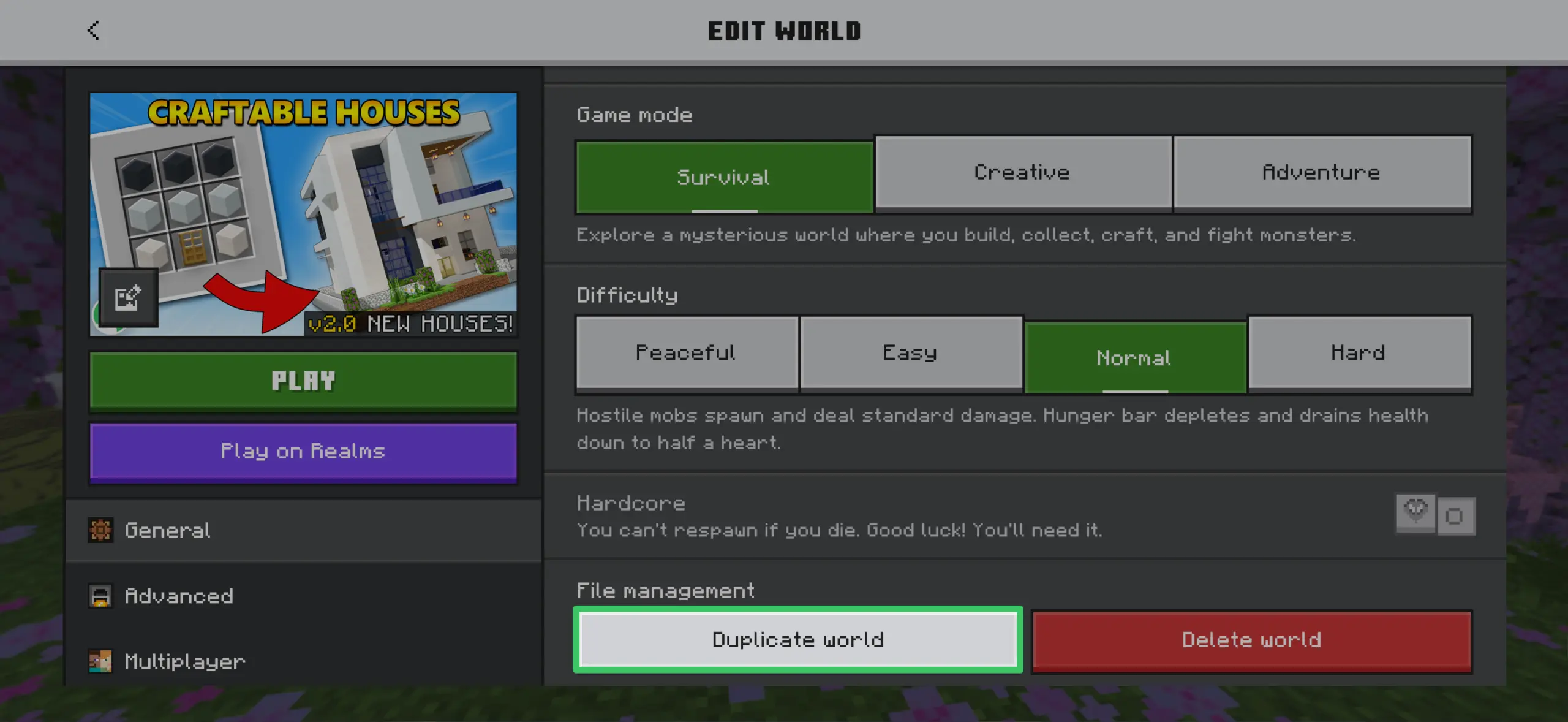
Duplicating a world creates an exact copy directly in your game. Go to the “Edit World” screen by clicking the Edit button next to your world in the Worlds tab, then select “Duplicate world”. This is perfect if you’re planning large changes to a build and aren’t sure if you want to keep them, or if you just want to blow up your house with TNT for fun. It’s also a pro tip for Hardcore mode players who don’t want to lose their world. Make sure to rename the new copy so you don’t get them mixed up!
Export World
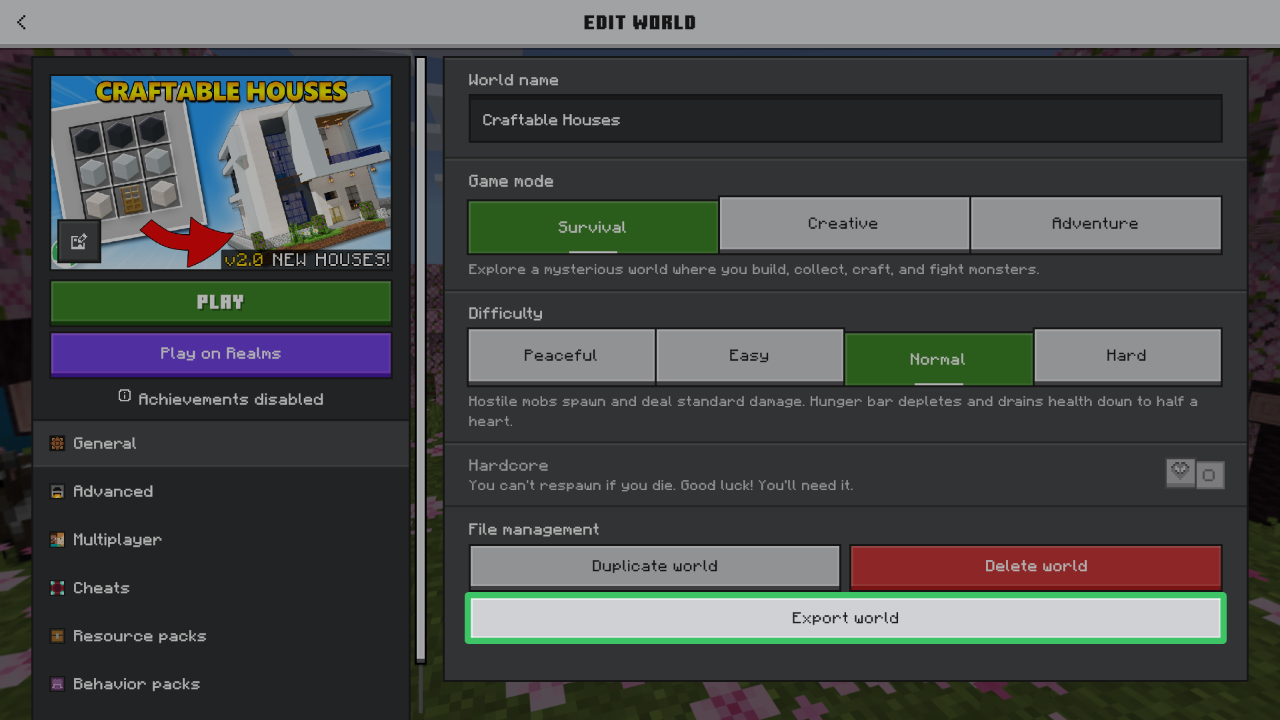
On the Windows Edition of Minecraft Bedrock, you can also export your world by pressing “Export world” in the Edit World screen. This generates a .mcworld file that you can open to import the world on any device. Saving this file somewhere else on your PC or in cloud storage ensures you’ll never lose your favorite Minecraft world.
In short, duplicating is the quickest way to make a back-up within the game itself, while exporting gives you a portable file you can store safely or transfer to another device.